Password Hygiene: A Practical Guide for Keeping Your Accounts Secure
The Thing Is, Passwords Are Difficult
I have the good fortune to work with many lovely people who are typically aged over 65, and nearly everyone of them dislikes managing passwords. Most of my customers didn’t grow up with technology, it was not a necessity to live your life. Then over the last two decades, everything changed and started requiring a password and an app, or two factor authentication and fingerprint scans. Banking, shopping, NHS appointments, council services. If you find it overwhelming, I can assure you that you are not alone!
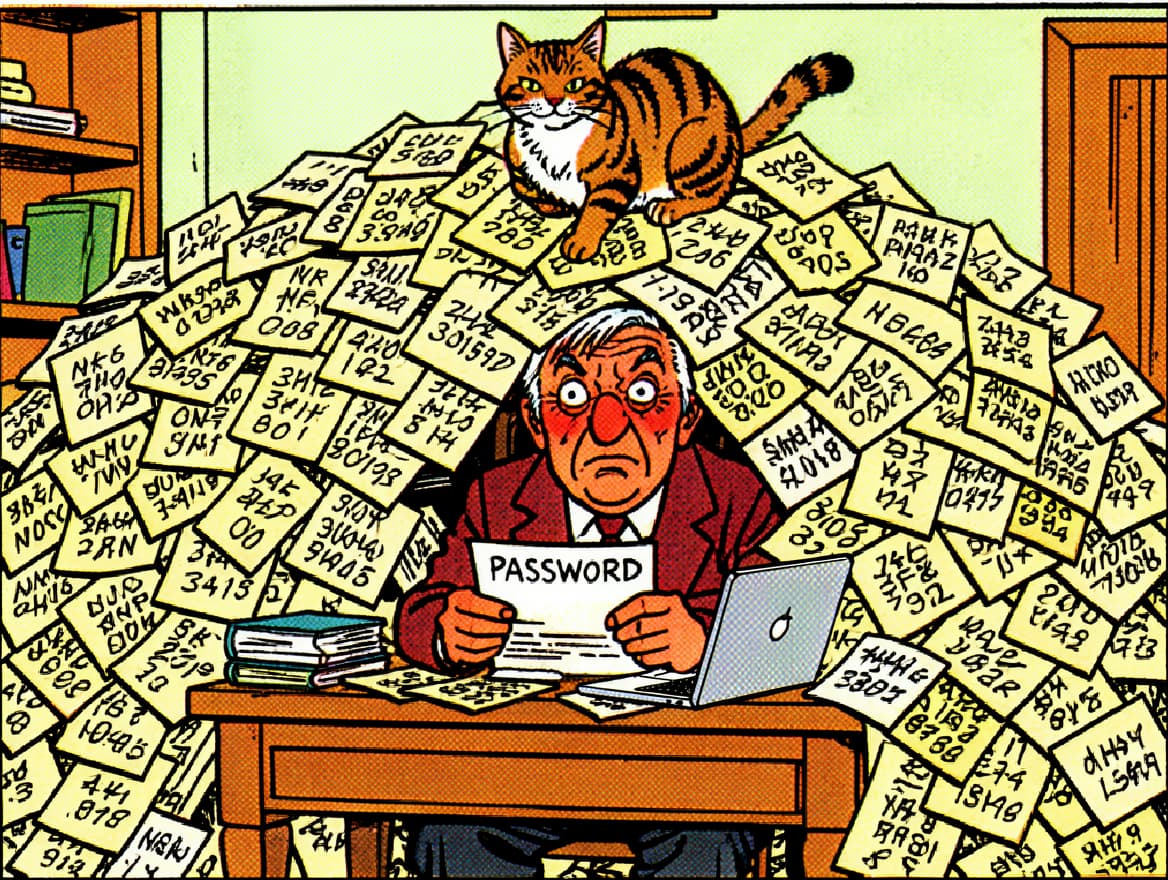
The result of this, really quite rapid, shift is that often the same password is used everywhere — perhaps a pet’s name with a number, or a memorable date. Some people write passwords in a notebook. Others use the same simple password across dozens of accounts. I absolutely understand why, when you’re faced with creating yet another password for a website you might use twice a year, what else can you do?

This isn’t about criticism. Passwords are genuinely difficult to manage. Did you know the average person has over 100 online accounts? Some people have much more, I have many, many more! Expecting anyone to remember 100 unique, complex passwords is unrealistic. I struggle with my own passwords, and I’ve worked in IT for over 25 years.
But there is good news: you don’t need perfect password hygiene. You need better password hygiene. Moving from one simple password everywhere to a simple system that uses different passwords for important accounts is a significant improvement. That is achievable by everybody. Let me explain how.
Why Your Password Habits Matter
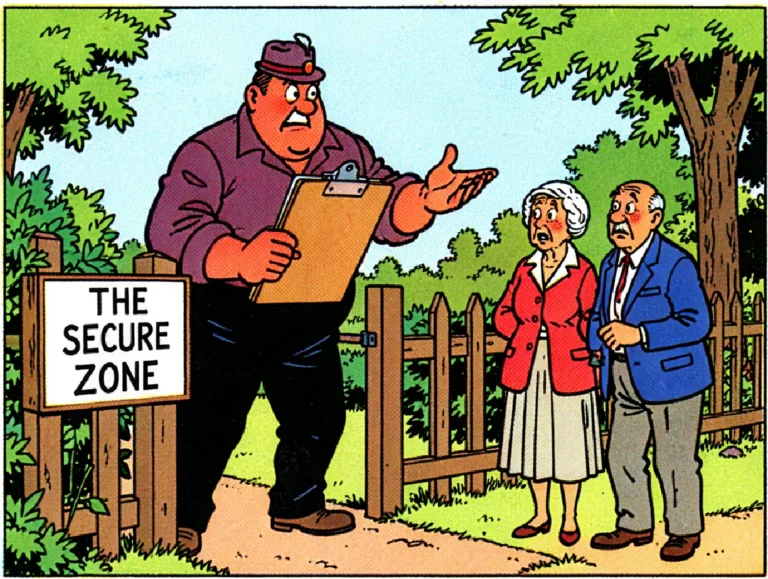
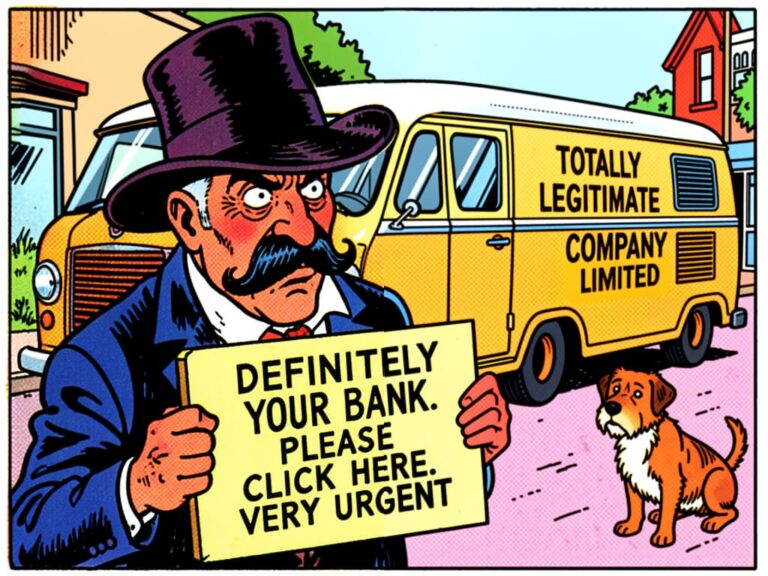
When you use the same password across multiple websites, you create a vulnerability that can be exploited. If one of those sites experiences a data breach — you’ve heard of these on the news — criminals obtain your email address and, in the worst cases, your password. Knowing that most people reuse the same or similar password across many accounts, they then attempt to use that same combination on banking sites, email providers, shopping websites, and social media platforms.
This is called credential stuffing. If your password is “Manchester1962” and you use it everywhere, a criminal who discovers it from a compromised website — perhaps something innocuous like a hobby forum — can then attempt to access your bank account, your email, your PayPal. They use automated tools capable of trying thousands of combinations each minute. This is known as a brute force attack.
The damage often occurs months after the initial breach. Criminals buy and sell password databases on the dark web. Your credentials might sit in a database for a year before someone attempts to use them.

This sounds alarming, and it is a genuine risk. But please don’t feel embarrassed if you have been using the same password everywhere. You are certainly not alone, and the solution is straightforward once you understand it.
What Makes a Password Good Enough
Security experts will tell you that a good password is long, random, and unique. Something like “xK9#mP2$vL7@nQ4.” A genuinely great password but it is not practical for a human being, particularly one who did not grow up typing or doesn’t always have perfect recall everyday, I include myself in that category!
When I help people set up passwords, I use practical standards that actually work in real life:
Good enough for most accounts:
- At least 12 characters
- Three or four random words joined together, with no direct connection
- No personal information (names, birthdays, addresses)
- A unique password for each important account (email, bank, council etc)
Examples that work well: “EclipseBicycleFavourite” or “GreenRainBrighton1990s” or “GardenWalkRoseMorning.” These are relatively easy to remember, straightforward to type, and difficult enough for computers (and people) to guess.
Must be stronger for important accounts:
- Banking and financial accounts
- Email accounts (these unlock everything else)
- Any account with saved payment details (Amazon, Tesco, PayPal, eBay)
For these, I strongly recommend using a password manager or the random passwords suggested by your browser.
The one rule that genuinely matters: Never use your email password or banking password for any other website. If you remember nothing else from this guide, please remember this.
✓ Important
Your email password is the master key to everything. If someone gains access to your email, they can reset passwords for most of your other accounts. Keep it unique and secure.
Built-In Password Managers: The Easiest Starting Point
The simplest way to improve your password security is to use the password manager already built into your device. These are free, automatic, and require almost no setup.
Google Password Manager (Android phones and Chrome browsers)
If you use an Android phone or the Chrome browser, you already have Google Password Manager. It is built into your Google account.
When you create a new account or change a password, Chrome asks if you want to save it. If you agree, the password is stored securely and syncs across all of the devices where you use Google — an Android tablet, mobile, a Chromebook, or any place where you use Chrome to access the internet.
When you return to that website, Chrome fills in your username and password automatically. You do not need to remember or type it.
To check your saved passwords: open Chrome, click your profile picture in the top right, then “Passwords.” Here you can see all saved passwords, check which are weak or reused, and update them. Google also offers Password Checkup, which warns you if any saved passwords have appeared in known data breaches. If you see a warning, change that password.
The limitation: Google Password Manager only works within Chrome and on Android devices. If you use Safari on an iPhone or Edge on a Windows computer, it will not automatically fill passwords there.
Apple iCloud Keychain (iPhone, iPad, and Mac)
If you use an iPhone, iPad, or Mac, you have Apple iCloud Keychain. Like Google’s version, it saves and fills passwords automatically.
When you create an account, your device asks “Would you like to save this password?” Tap “Yes.” The password syncs across all your Apple devices.
To view saved passwords: on iPhone or iPad, go to Settings, then “Passwords.” You will need Face ID, Touch ID, or your device passcode to access them. Apple also warns you about compromised passwords — in Settings > Passwords, look for “Security Recommendations.”
The limitation: iCloud Keychain only works on Apple devices.
Which should you use?
Use the one that matches your primary device. Mainly use an iPhone or iPad? Use Apple iCloud Keychain. Mainly use an Android phone? Use Google Password Manager. If you use a mix of devices — say an iPhone and a Windows laptop — the built-in managers won’t talk to each other. In that case, a free tool called Bitwarden is worth considering. I’ve written a separate guide on setting it up.
For most people, the built-in option is genuinely sufficient. It generates strong passwords, fills them automatically, and warns you about problems — and there’s nothing new to learn.
Password Books: A Practical Backup
Security professionals often advise against writing passwords down. In an office environment, this makes sense. But for people at home, a password book is often a sensible and practical solution.
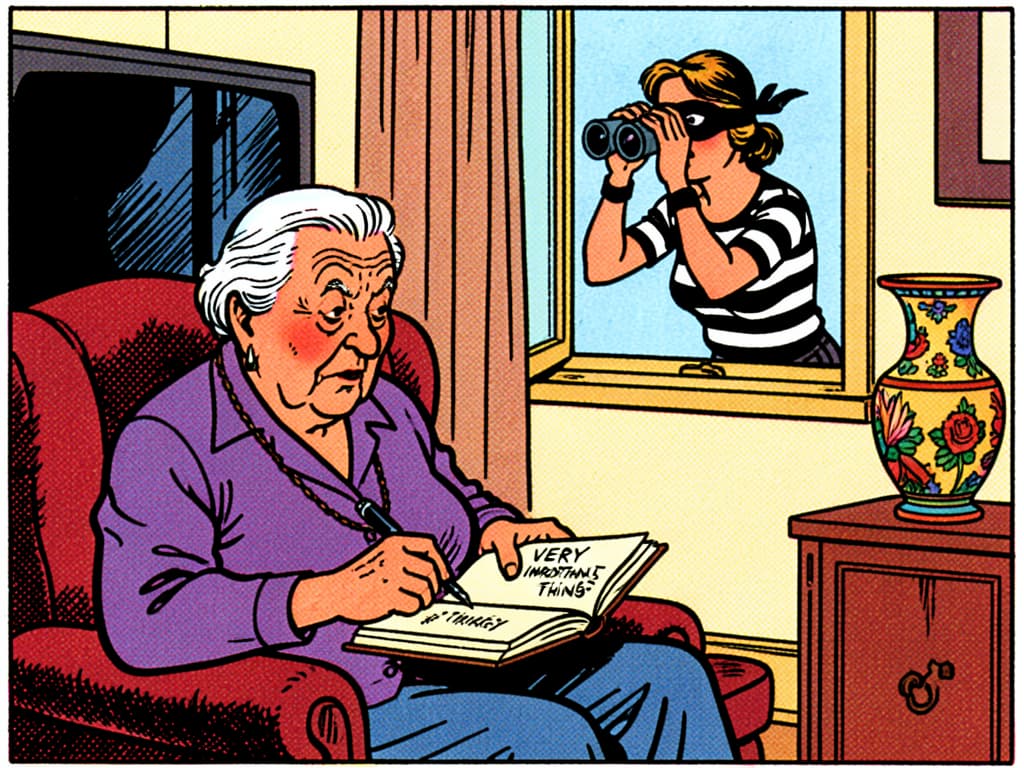
Here is the reality: a burglar breaking into your home is unlikely to steal your password book. They are looking for items of immediate value. A notebook in a drawer is not a target. Meanwhile, a criminal in another country can attack your online accounts from anywhere, anonymously, at any time. The online threat is significantly greater than the physical threat for most people.
Many of my clients use password books successfully — there’s no shame in this. They work best as an accompaniment or backup to a password manager, not as a replacement for one.
How to use a password book safely
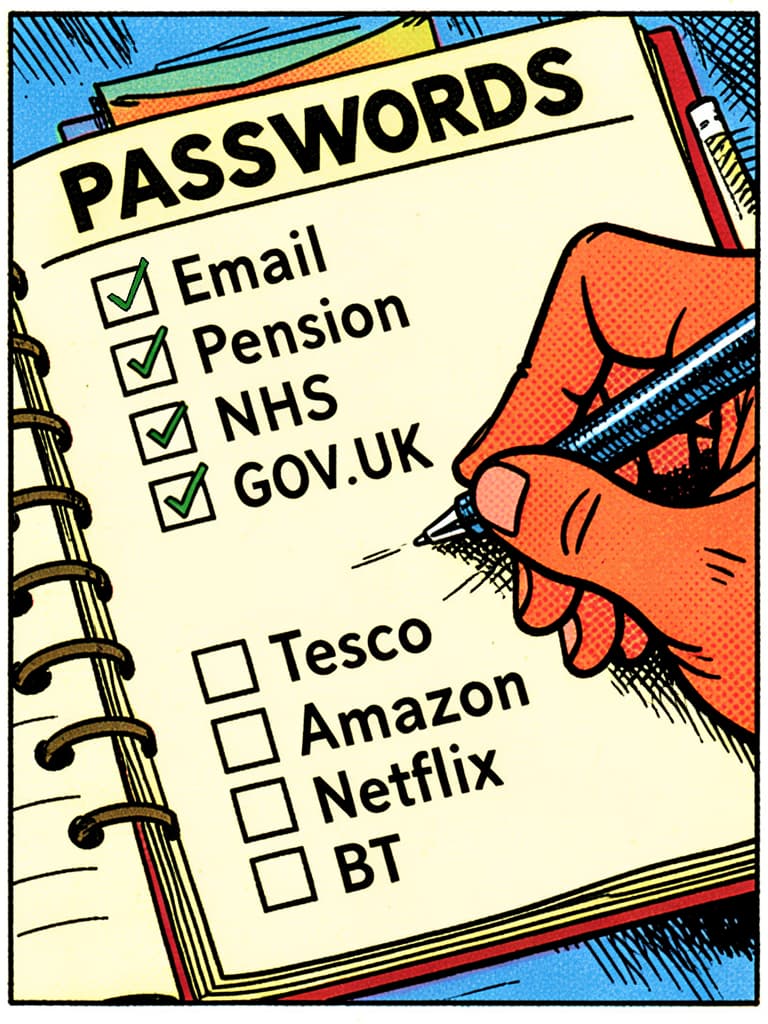
Write down your most important passwords:
- Your email password
- Your banking passwords
- Your password manager master password (if you use one)
- Your phone and computer passcodes
Keep it somewhere secure — a locked drawer, with other important documents, or in a small safe if you have one.
Do not write down everything. Use your password manager for routine accounts. The password book is for the critical few you must never lose.
Update it when you change passwords. If you update your banking password, update the book. If this feels like too much trouble, you should probably rely more heavily on your password manager.
If you use a password book, tell a trusted family member where it is kept. If you become unable to manage your accounts, or after you pass away, they will need to access them. I’ve written separately about digital legacy planning — the two subjects go hand in hand.
A Practical System That Works
Here is a password system I have developed working with customers locally. It balances security with practicality. It is not perfect, but it is vastly better than using the same simple password everywhere.
Step 1: Choose your primary tool
Option A — Simplest: Use the built-in password manager (Google for Android/Chrome, Apple for iPhone/iPad). Let it save and fill passwords automatically. Write down your email and banking passwords in a password book as backup.
Option B — Most flexible: Use Bitwarden on all your devices. Write down your Bitwarden master password and keep it secure. Tell a trusted family member where it is.
Option C — Lowest tech: Use a password book for important accounts. Create strong, unique passwords for banking and email. For less critical accounts, it is acceptable to reuse a well-constructed, memorable password.
Step 2: Secure your email account first
Your email is the master key to everything. If someone gains access to it, they can reset passwords for most of your other accounts. Secure this before anything else — use a unique password you don’t use anywhere else, and make sure it’s saved somewhere you won’t lose it.
Step 3: Secure financial accounts
Banking, investment, and payment accounts need unique, strong passwords. Never reuse your email password for these. Most UK banks now use additional security beyond passwords — text message codes, card readers, or app confirmations — which helps, but a strong unique password remains essential.
Step 4: Update your weakest passwords gradually
You do not need to change everything immediately — that is overwhelming. Instead, as you naturally use accounts, update the passwords to something better. Work through this priority order over time:
- Email accounts
- Banking and financial accounts
- Shopping sites with saved payment details
- Social media accounts
- Everything else
When you update a password, let your password manager generate a random one. You do not need to remember it.
Step 5: Make sure someone you trust can get in if needed
Ensure someone you trust can access your accounts if something happens to you. With built-in password managers, make sure a family member knows your device passcode. If using a password book, tell them where it is kept. This is something I cover in depth in my digital legacy guide.
Questions I Am Often Asked
I cannot remember multiple passwords. What should I do?
This is exactly what password managers are for. You remember one master password, and the manager remembers everything else. If you prefer not to use one, focus on having unique passwords for your three most important accounts: email, banking, and one shopping site. Write those down in a password book. Yes, a password manager takes a little getting used to — there are a few extra clicks at times — but you are trading a small amount of convenience for significantly greater security.
Are password managers safe? What if they are hacked?
Password managers are designed to withstand breaches. Your passwords are encrypted with your master password before leaving your device. Even if the service were compromised, criminals would only obtain encrypted data that is useless without your master password. Major password managers have never had user passwords stolen in a usable form. They are significantly safer than reusing weak passwords.
I have dozens of accounts with the same password. Where do I start?
Start with your email account. Secure that first — change it to a unique password and save it properly. Then do your banking. Then any shopping sites with saved payment cards. You do not need to fix everything immediately. Each unique password you create improves your security. Do a few each week and you will gradually reduce the risk.
Should I change my passwords regularly?
Previous advice suggested changing passwords every 90 days. Modern guidance has changed: only change passwords if you suspect they have been compromised, or if they are weak or reused across multiple sites. Constant changes lead to predictable patterns — or people writing them down in obvious places. One strong, unique password per account is better than rotating weak ones frequently.
Free Digital Support Sessions Near You
If you’d find it helpful to go through any of this advice in person, you can of course book an appointment with me. I also volunteer at two free digital drop-in sessions each month, organised by Communities Together East Anglia. The sessions are open to everyone — no booking needed, no question too small. Donations to the charity are encouraged but not required.
- Wesley Cafe, Elmswell — 3rd Wednesday of each month, 10:00 AM to 12:00 PM
- Stowmarket Library — 1st Wednesday of each month, 10:00 AM to 12:00 PM
Tearing your hair out?
Ask Mathew
I help people across Elmswell, Stowmarket, Bury St Edmunds and surrounding villages get to grips with computers, phones, tablets, and the rest of it. Patient, friendly, no jargon.
Get in TouchOr call 07411 218222